Day 03 - Basic Linux commands

Day 03 of #90DaysofDevOps - we are going to have a look into the basic Linux commands in this blog.
Introduction💡
In this blog, we are going to look into the basic Linux commands, to understand the fundamentals of navigating the Linux operating system effortlessly! I'll walk you through the most essential Linux commands in the simplest way possible. Just a willingness to explore and learn. Let's get started!
Tasks for the day🎯
Write Linux commands to:
view what's written in a file.
change the access permissions of files.
check which commands you have run till now.
remove a directory/Folder.
create a fruits.txt file and view the content.
Add content in fruits.txt (One in each line) - Apple, Mango, Banana, Cherry, Kiwi, Orange, Guava.
Show only the top three fruits from the file.
Show only the bottom three fruits from the file.
To create another file Colors.txt and to view the content.
Add content in Colors.txt (One in each line) - Red, Pink, White, Black, Blue, Orange, Purple, Grey.
Solution for the above scenarios:💡
🎯Command to view what's written in a file:
To view the contents of a file in Linux, we can use the cat command. The cat command stands for "concatenate" and is commonly used to display the contents of a single file on the terminal. Here's an example:

🎯Command to change the access permissions of files.
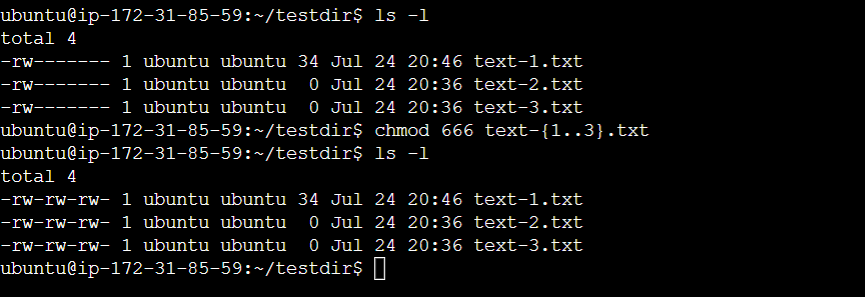
To change the access permissions for files in Linux, we can use the chmod command. chmod stands for "change mode," and it allows you to modify the read, write, and execute permissions for the owner, group, and others on a file.
The basic syntax of the chmod command is as follows:
chmod permissions filename
The permissions argument represents the new permissions you want to set for the file, and filename is the name of the file for which you want to change the permissions.
There are several ways to specify the permissions argument:
Numeric mode: Use a three-digit number to represent the permission settings. Each digit corresponds to the permissions for the owner, group, and others, respectively.
4 (r): Read permission
2 (w): Write permission
1 (x): Execute permission
To set, for example, read and write permissions for the owner, and read-only permissions for the group and others, you would use the number 644:
chmod 644 filename
Symbolic mode: Use letters to represent the changes to the current permissions.
+: Adds the specified permissions-: Removes the specified permissions=: Sets the permissions exactly as specified
For example, to add execute permission for all (owner, group, and others), you would use:
chmod a+x filename
Remember that changing permissions can impact the security and functionality of your files, so use the chmod command with caution and only modify permissions as necessary.
🎯Command to check which commands you have run till now.
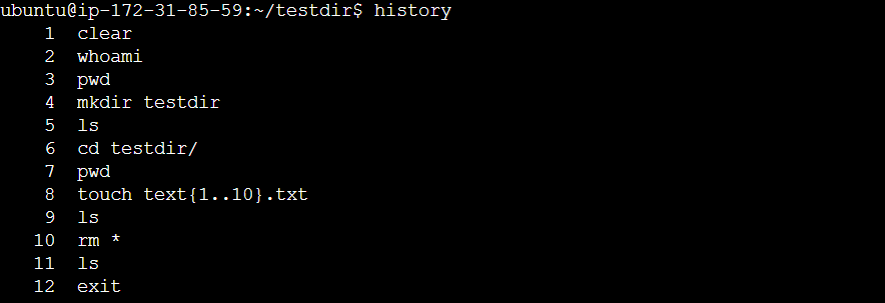
The history command is used to display a list of the previously executed commands in the terminal session.
To use the history command, simply open a terminal and type:
history
🎯Command to remove a Directory/Folder.
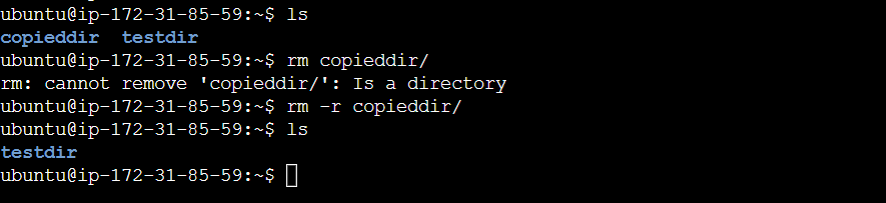
The rm command is used to remove files and directories, including non-empty directories. When using rm with directories, you need to use the -r (recursive) option to remove directories and their contents.
rm -r directory_name
🎯Command to create a fruits.txt file and view the content.
To create a new file in Linux, you can use the touch command. The touch command is a simple and efficient way to create a new, empty file.
The basic syntax for the touch command is as follows:
touch filename

🎯Command to Add content in fruits.txt (One in each line) - Apple, Mango, Banana, Cherry, Kiwi, Orange, Guava.
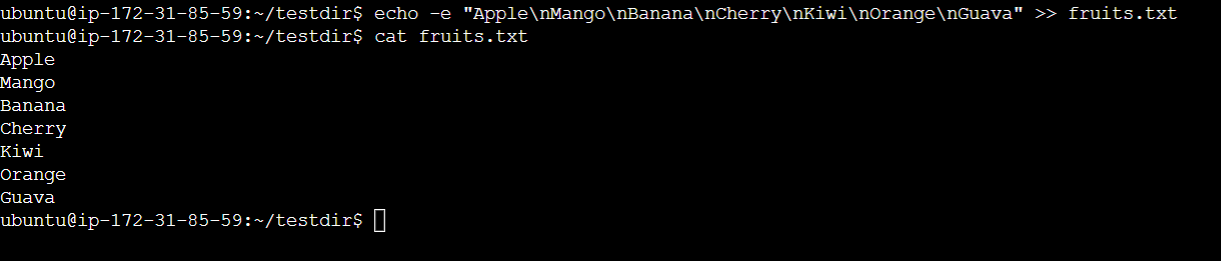
To add content to the file "fruits.txt" with each fruit on a separate line in Linux, we can use the echo command along with the >> redirect operator to append the fruits to the file. Here's the command:
echo -e "Apple\nMango\nBanana\nCherry\nKiwi\nOrange\nGuava" >> fruits.txt
🎯Command to show only the top three fruits from the file.
To show only the top three fruits from the "fruits.txt" file in Linux, we can use the head command with the -n option to specify the number of lines to display. The head command shows the beginning (top) part of a file. Here's the command:
head -n 3 fruits.txt

🎯Command to show only the bottom three fruits from the file.
To show only the bottom three fruits from the "fruits.txt" file, you can use the tail command with the -n option to specify the number of lines to display. The tail command shows the end (bottom) part of a file. Here's the command:
tail -n 3 fruits.txt

🎯Command to create another file Colors.txt and to view the content.
To create the file "Colors.txt" in Linux and view its content, you can use the following commands:
Create the "Colors.txt" file:
touch Colors.txt
View the content of "Colors.txt":
cat Colors.txt
Since we just created the file, the output will be empty, indicating that there is no content in the file yet.
🎯Command to add content in Colors.txt (One in each line) - Red, Pink, White, Black, Blue, Orange, Purple, Grey.
- dd content to "Colors.txt" (One color in each line):
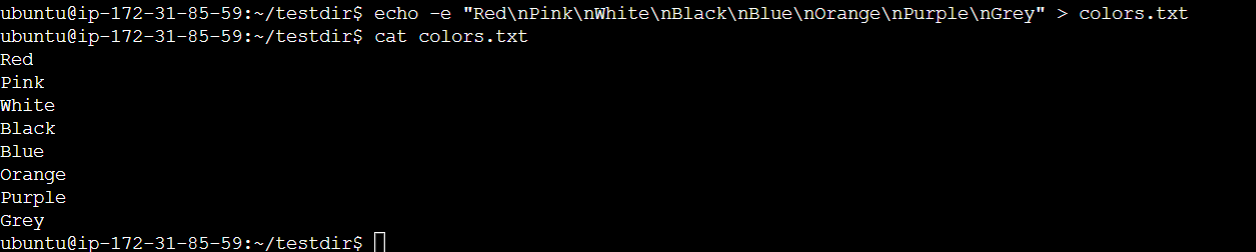
echo -e "Red\nPink\nWhite\nBlack\nBlue\nOrange\nPurple\nGrey" > Colors.txt
This command will add the colors to the "Colors.txt" file, with each color on a separate line.
Conclusion:🔦
In conclusion, we have explored the world of "Basic Linux Commands" in the simplest way possible. Throughout this blog, we embarked on a journey to demystify the Linux command line, empowering both beginners and those looking to refresh their knowledge. We started by understanding the essential command to view the contents of a file using the cat command, and we saw how the history command could help us recall and reuse past commands, streamlining our workflow. Moving on, we learned about modifying access permissions for files with the chmod command, a crucial aspect of maintaining security and control over our files and directories. To interact with files, we discovered the touch command, which allowed us to create new files quickly and effortlessly. Moreover, we explored how to add and view content within files, using the echo command to append data to "fruits.txt" and "Colors.txt," organizing our information one line at a time. Lastly, we learned to retrieve specific information from files, employing the head and tail commands to display the top and bottom contents, respectively.